Lekkolot Mobile App Features for Warehouse Workers
We are working on this section. Detailed documentation will appear here soon.
Contents
- Products - create and manage existing products.
- Move products - change product locations.
- Inventory - check where products are stored.
- Vehicles - manage vehicles.
- Printers - manage printers.
- SKU list - manage listing SKUs.
- Settings - configure tools and features.
1. Products - create and manage existing products
This is the main tool where you can create listings and edit previously created ones. You can find existing listings manually by using search and entering the name, or by scanning a QR code.
When creating a new listing, you need to enter the listing SKU prefix without numbers, optionally add a donor vehicle, and configure how many labels should be printed during creation.
After creation, the listing edit screen opens. There you can add photos and videos from the gallery or take new pictures with the camera, add a note with additional information about the part for later listing processing, and print extra labels if needed. When saving, you can go to the screen with all listings or continue creating the next one.
2. Move products - change product locations
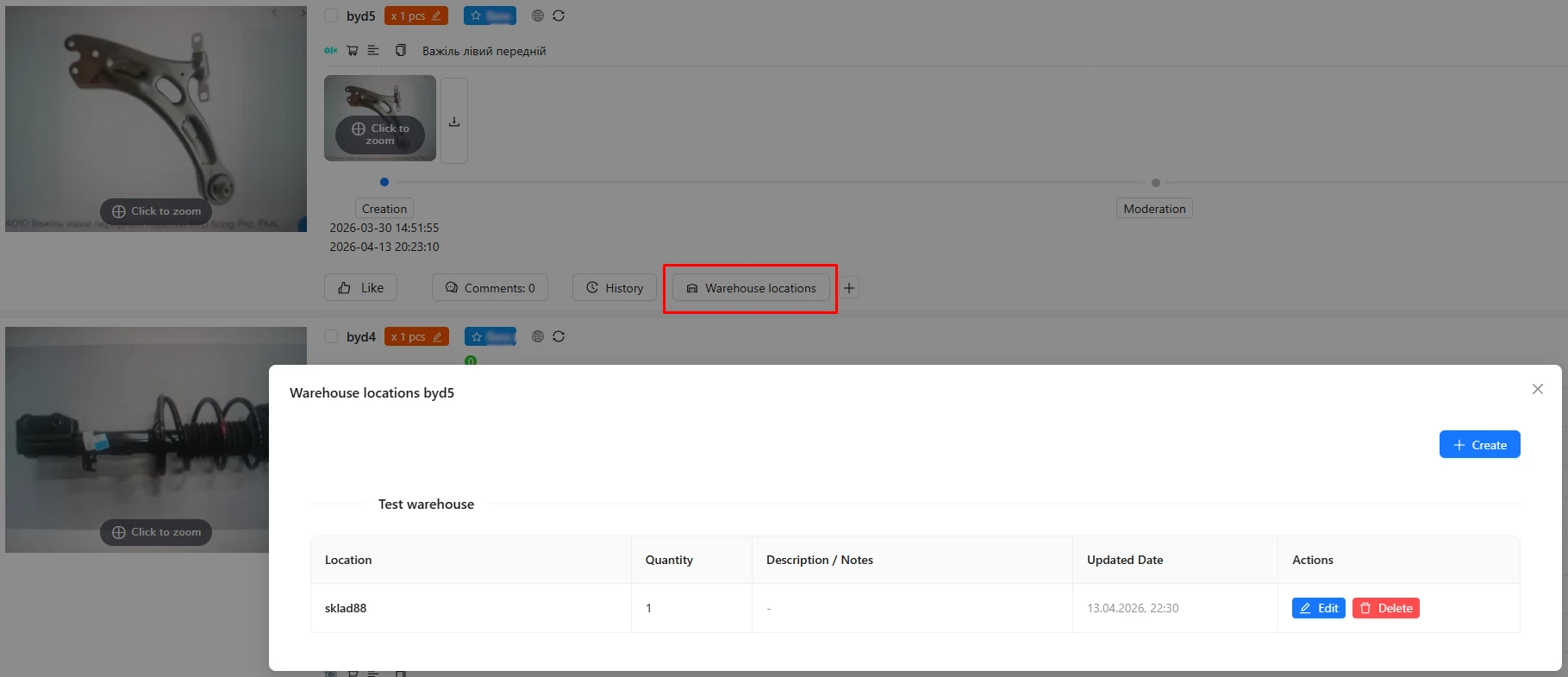
This is a warehouse product management tool where you can assign a warehouse, if you have several, and a storage location, as well as change the product location. Currently, you can view the location in the main Lekkolot listing interface:
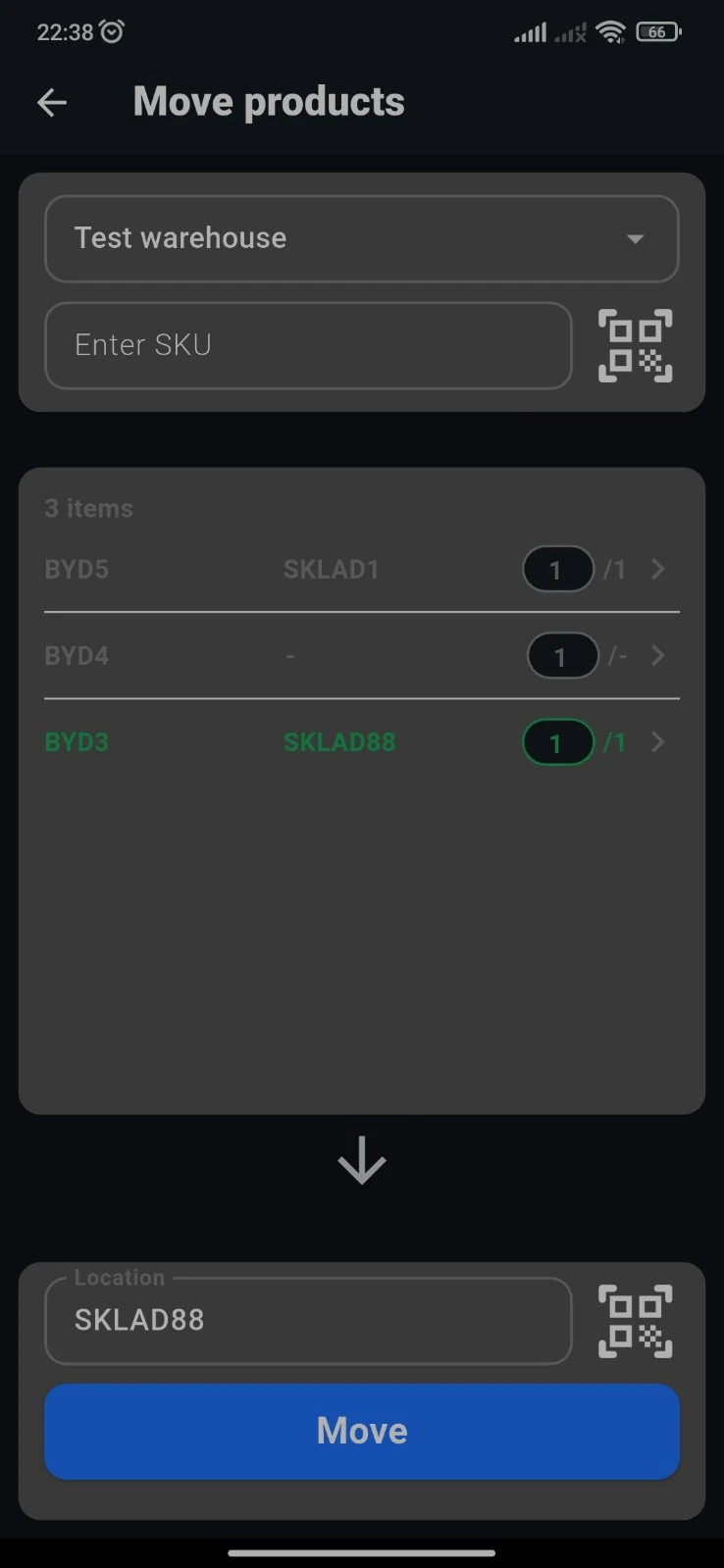
You can select a warehouse, enter the SKU or scan the QR code of the products you want to assign a location to, change the quantity of identical products under one SKU, then enter or scan the target storage address and move the products.
For products that already have a location, the location name is displayed. If you move a product to the same location where it already is, it will be highlighted in green.
3. Inventory - check where products are stored
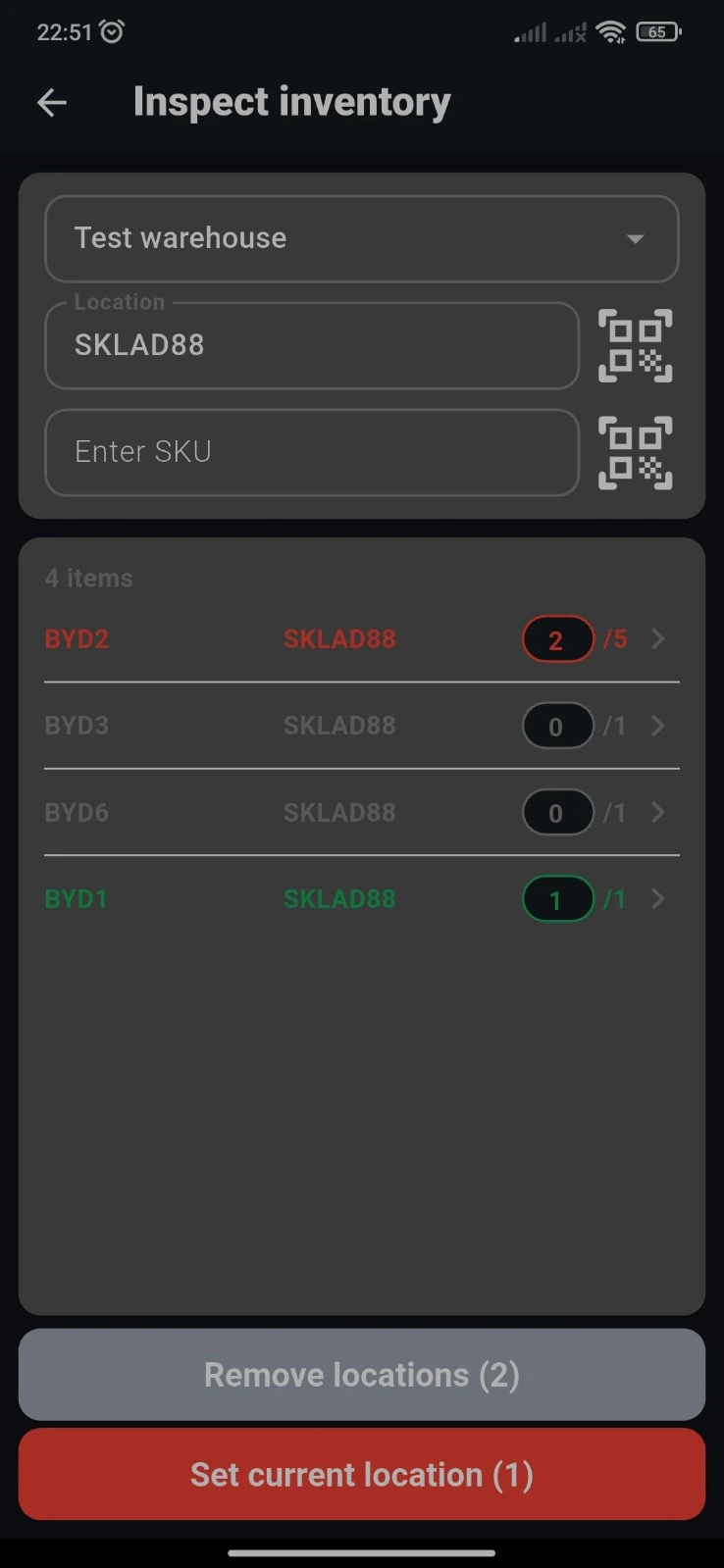
This tool is used to check what is stored in a storage location. After scanning a QR code or entering the location name, you will see what is stored there. After entering or scanning products, you will be prompted to remove missing products marked in gray or adjust the quantity of missing products marked in red.
4. Vehicles - manage vehicles
This tool is used to store information about a donor vehicle, if one exists. Vehicle information will be displayed in the Lekkolot editing interface.
Here you can create donor vehicle information, enter the VIN code, mileage, production year, write a note, and add photos and videos.
You can add the purchase price in the Lekkolot interface.
5. Printers - manage printers
This section configures the printer for printing QR codes when creating and editing products.
You can connect printers via Bluetooth or LAN. The printer must support ZPL, a programming language for printing labels.
6. SKU list - manage listing SKUs
This tool lets you view your SKUs and the number of listings created with each SKU, add a name to distinguish similar SKUs, and check existing SKUs when creating new ones.
7. Settings - configure tools and features
In settings, you can change the language, theme, and sound.